I cannot believe I spent the better part of one day to fix a problem in many difficult ways when the fix was very simple!
What is ffplay
The FFmpeg project also provides a barebones media player known as ffplay. It does not have any menus — main or context. You have to use certain keys and mouse actions for controlling the playback.
| Keypress/ Mouse action | Function |
|---|---|
| SPACE bar | play or pause playback |
| LEFT and RIGHT | fast-forward or rewind by 10 seconds |
| UP and DOWN | fast-forward or rewind by 1 minute |
| PAGE UP and PAGE DOWN | switch chapter (if present) if there are no chapters, behave like LEFT and RIGHT |
| double-click | toggle between windowed and fullscreen view |
| right-click | seek forward or backward using an invisible playback slider |
| a | switch (audio) language |
| t | switch subtitle (language) |
| m | mute on/off |
| / | decrease sound volume |
| * | increase sound volume |
| w | switch filters |
Like ffmpeg, ffplay displays a huge banner and writes a lot of text messages on the console. You can hide them using some switches.
ffplay -hide_banner -nodisp -autoexit \
       Nightfall-Stone-Ship.mp3
Even with this arrangement, ffplay is not entirely quiet because it also writes to standard error. If you want a clean console, try
ffplay -loglevel quiet \
       Nightfall-Stone-Ship.mp3
How to play videos with ffplay
As mentioned in another blog post, I now I use ffplay command to fix two prominent problems with online videos.
- Extremely pale videos.
- Extremely loud or low-volume videos.
I use a Caja Actions Configuration to right-click videos and launch them with ffplay. It has the effect of running this script manually.
bash Play-Video-With-ffplay.txt \
     hobonichi-no-kaidan.mp4
Of course, to use Caja Actions, you should have chosen the Mate desktop. If you had meekly accepted Gnome 3 like a moron when it was imposed on you, then you deserve it. Free software is about freedom, is it not, slave?
The definitive ffplay command for offline videos
The code in the Play-Video-With-ffplay.txt script is as follows:
#! /bin/bash
set -ux

### Caja Actions Configuration ###

# Context label:    Play with FFplay compressor
# Tooltip:              Play this video with FFmpeg video player with realtime compressor
# Command:              terminator
# Parameters:           -x bash ${HOME}/Scripts/CajaActionsConfiguration/Play-Video-With-ffplay.txt %f
# Mimetype:             video/*
# Environment:      Count = 1
# Updated:              8 October 2025

sFile=$*
sTitle=$(basename "${sFile}")

sSdata=$(ffprobe -loglevel quiet -print_format "default=nw=1:nk=1" \
                -select_streams v:0 \
                -show_entries "stream=width,height,duration" \
                -i "${sFile}")
#echo $sSdata
#exit

sDur=$(echo $sSdata | cut -d " " -f3)
sWidth=$(echo $sSdata | cut -d " " -f1)
sHeight=$(echo $sSdata | cut -d " " -f2)

if [ "$sDur" = "N/A" ]; then
  sDur=$(ffprobe -loglevel quiet -print_format "default=nw=1:nk=1" \
                 -select_streams v:0 \
                 -show_entries "stream_tags=duration" \
                 -i "${sFile}")
  if [ -z "${sDur}" ]; then
    sDur1=$(ffprobe "${sFile}" 2>&1 | grep "Duration: ")
    if [ -z "${sDur1}" ]; then
            notify-send "FFplay compressor" "Duration stream information not found"
            echo "FFplay compressor: Duration stream information not found"
            exit
    else
          sDur2=${sDur1%%,*}
          sDur=${sDur2:11}
    fi
  fi

  sDur=${sDur%.*}
  iMin=$(echo $sDur | cut -d ":" -f2)
  iHour=$(echo $sDur | cut -d ":" -f1)
  iSec=$(echo $sDur | cut -d ":" -f3)
  iHour=${iHour#0}
  iMin=${iMin#0}
  iSec=${iSec#0}
  let iHour=iHour*60*60
  let iMin=iMin*60
  #echo $iHour $iMin $iSec
  let iDur=iHour+iMin+iSec
  #echo $iDur $iHour $iMin $iSec

else
  iDur=${sDur%.*}
fi

iSubtitleCount=$(ffprobe -loglevel 0 -print_format "default=nw=1:nk=1" -show_entries stream=codec_type "${sFile}" | grep subtitle | wc -l)
if [ $iSubtitleCount -gt 0 ]; then
  sSubtitleFilter=",subtitles=filename=${sFile}"
else
  sSubtitleFilter=""
fi

ffplay -analyzeduration 9*999*999*999 -probesize 9*999*999*999 \
  -hide_banner -autoexit \
  -window_title "$sTitle" \
  -vf "eq=saturation=1.6,
       drawtext=x=round((W-tw)/2):y=H-th-5:
         fontfile='${HOME}/.fonts/Time-Normal.ttf':
         fontsize=round(H/25):fontcolor=F3B75FFF:
         text=\'%{eif\:mod(${iDur}/3600\,60)\:d\:2}\:%{eif\:mod(${iDur}/60\,60)\:d\:2}\:%{eif\:mod(${iDur}\,60)\:d\:2} ${sWidth}×${sHeight}\':
         enable=lt(t\,25),
       drawtext=x=round(W*t/${iDur}):y=H-th-1:
         fontfile='${HOME}/.fonts/Inter-Regular.ttf':
         fontsize=round(H/20):fontcolor=purple:
         text='□':enable=lt(mod(t\,4)\,2),
       drawtext=x=round(W*t/${iDur}):y=H-th-1:
         fontfile='${HOME}/.fonts/Inter-Regular.ttf':
         fontsize=round(H/20):fontcolor=orange:
         text='□':enable=gt(mod(t\,4)\,2),
       drawtext=x=W-tw-20:y=H-th-5:
         fontfile='${HOME}/.fonts/Time-Normal.ttf':
         fontsize=round(H/25):fontcolor=FFA7FDFF:
         text='%{eif\:mod(t/3600\,60)\:d\:2}\:%{eif\:mod(t/60\,60)\:d\:2}\:%{eif\:mod(t\,60)\:d\:2}'
       ${sSubtitleFilter}" \
  -af "dynaudnorm=gausssize=3,extrastereo=c=0" \
  "${sFile}"
You can play a video with the above script like this:
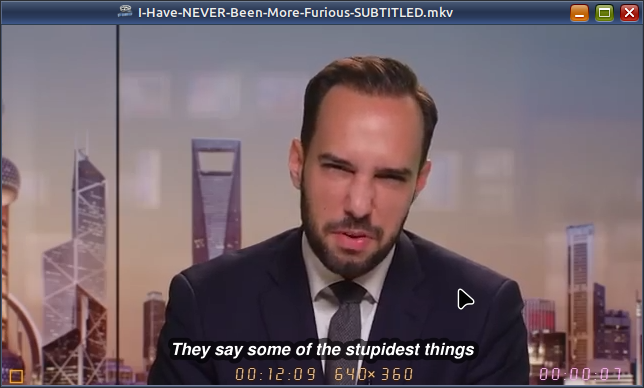
bash Play-Video-With-ffplay.txt hobonichi-no-kaidan.mp4The script writes some text, a square box, which moves to the bottom-left corner of the video which then moves to the bottom-right corner as the playback progress towards the end. Another piece of text is drawn for the timer in the bottom-right corner. In the middle, also near the bottom edge, some text is written for the total duration and dimensions of the video. This disappears after a few seconds.
The timer can also be set using the filter options timecode=\'00\:00\:00\:00\':timecode_rate=24. This however includes the microseconds. That is overkill. For less distraction and more flexibility, I used three expressions (involving the t variable, which stands for playback position in seconds) expanded in the text filter option.
All day, I was trying to find a way to get the total duration of the playback in various filters to no avail. Eventually, it fixed it by capturing the output of ffprobe in another bash command.
The colours are enhanced. The audio is compressed so there are no low-volume or sudden high-volume segments. These fix are needed as I mostly see poorly produced videos on TheyTube and Rumble. Do not use it for original movies or music videos.

Customization
Rather than type this long command every time, you could place the script in your /opt directory and have this alias in your .bashrc file.
alias play='bash /opt/Play-Video-With-ffplay.txt 'This way, you can simply type play some-video-file.mkv to accomplish the same.
Video demo
In ffplay, you can right-click anywhere on the video as the entire frame acts as a giant progress bar.

The progress bar does not work well with small files.
Make the scrollbar permanent
If you want to permanently add the slider to your video, you need to make some modifications to the script.
#! /bin/bash
# add-scrollbar-to-video.txt

sFile=$*
sDuration=$(ffprobe -loglevel quiet -print_format "default=nw=1:nk=1" \
                -select_streams v:0 \
                -show_entries "stream=duration" \
                -i ${sFile})
iDuration=${sDuration%.*}

ffmpeg -i "$sFile" \
        -vf "drawtext=x=round(W*t/${iDuration}):y=H-th-1:
               fontfile='${HOME}/.fonts/Inter-Regular.ttf':
               fontsize=round(H/20):fontcolor=FFAAEE:
               text='□'" \
        -af "extrastereo=c=0" \
        -c:v libx264 -profile:v high -crf 21 -preset medium -tune film -r 25  -pix_fmt yuv420p \
        -c:a libfdk_aac -vbr 5 \
        "${sFile%.*}-SCROLLS.mp4"
When I play this ‘SCROLLS’ video with my ffplay compressor script, the two squares (progress indicators) coincide!
How to play livestreamed videos using ffplay
Youtube-DL is under DMCA takedown. In its place, you can use its fork yt-dlp.
To play livestreamed videos, you can use this script:
#! /bin/bash
# play-livestream-video.txt

sURL="$*"
sTitle=$(yt-dlp_linux --quiet --skip-download --print title $sURL)

yt-dlp_linux -o - "$sURL" | \
    ffplay -window_title "${sTitle}" \
           -af "dynaudnorm=gausssize=3" \
           -
Run it like this:
bash play-livestream-video.txt https://www.youtube.com/watch?v=nvXLt3ET9mE
Do note that the ytp-dlp command writes to the standard input and the ffplay reads from the standard input. So, do not omit the hyphens on either side of the pipe.
How to play Youtube videos offline using ffplay
For other videos that have been uploaded to the Web, the above script will be annoying because you cannot fast-forward or rewind. It would be better to download and then play the videos offline.
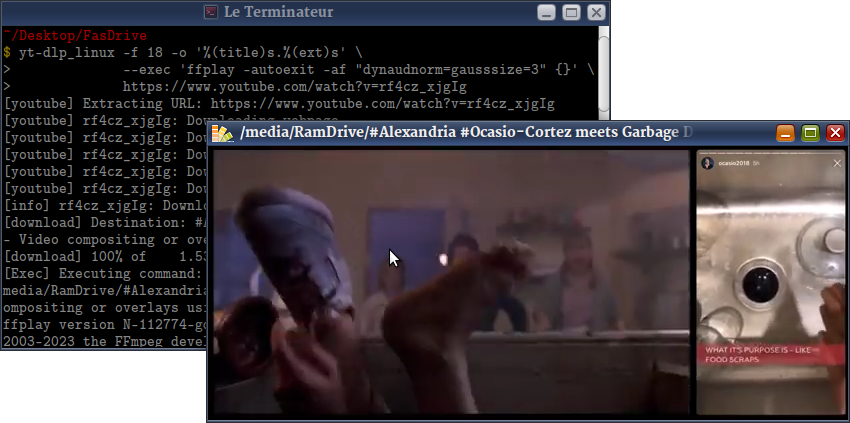
yt-dlp_linux \
    -f "hasvid,hasaud,[height>=360]" -S "+height" \
    -o '%(title)s.%(ext)s' \
    --exec 'ffplay -autoexit -af "dynaudnorm=gausssize=3" {}' \
https://www.youtube.com/watch?v=rf4cz_xjgIg- Streaming sites offer the same video in multiple formats, dimensions and quality. The
-foption is for specifying the name for one of these download options. The names differ from video to video and platform to platform. Instead of specifying an explicit name, I can use some special keywords instead. The keywordshasvid,hasaudensures thatyt-dlpchooses download options that have both video and audio streams. The value[height>=360]ensures thatyt-dlpdownloads videos whose height equal or greater than 360 pixels. With the-Soption, I have ensured that the smallest video among those available with the-foption is chosen for download first.yt-dlpignores other qualifying videos. Without the plus (+) prefix in its value,yt-dlpwould have chosen the biggest available video. - The
-ooption is for naming the download file. It uses some metadata placeholders. - The
--execoption is for launching the downloaded video with some application. Obviously, I have chosenffplay. The '{}' in theexecoption will be replaced by the downloaded video file name (including the extension).
Become an FFmpeg PRO by reading my book Quick Start Guide to FFmpeg.

- MORE INFO — http://www.vsubhash.in/ffmpeg-book.html
- BUY — https://books2read.com/ffmpeg (common link for all stores)
- FREE INTERNATIONAL SHIPPING -
https://www.apress.com/9781484287002
This blog post was updated several times to change the scrollbar text and to add the timer and subtitles. Now, it looks like this: